Jakcom H1 Smart Health Watch
Instruction for Use
Package
description:
Host
x1
Special
charger x1
Instruction
x1
Structure
specification
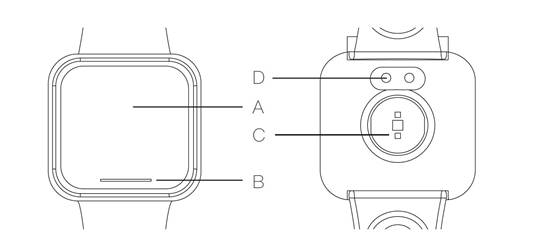
A
Host screen
B
Touch control key
C
Rate - blood pressure sensor
D
Host charging contacts
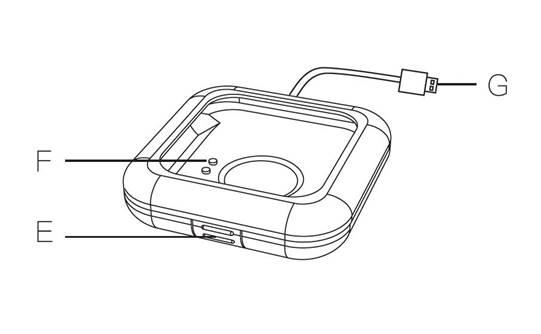
E
Charging clip switch
F
Charging clip contacts
G
Charging clip USB socket
First
use:
Please
charge the watch for 2 hours before first use.
Please
download the matched APP special for the watch before first use.
Please
click the following URL to download.
When
installing Android mobile phones, please be sure to open the "automatic
operation" authority, otherwise the "message reminding" function
can't be used.
Charging
method:
Press
the charging clip switch to open the charging clip.
Put
the host into the charging clip and connect the host charging contacts with the
charging clip contacts.
Close
the charging clip cover and put it into place.
Insert
the charging clip USB socket into any 5V1A USB power.
Host
operation:
Watch
starting up: Long press the touch control key for 5 seconds in shutdown mode.
Screen
wake-up: Click the touch control key in starting-up mode.
Function
confirmation: Long press the touch control key for 3 seconds in starting-up
mode.
Function
switch: click the touch control key and switch to a function option in
starting-up mode
Connection
description:
Open
the Bluetooth function of the mobile phone;
Open
the matched APP for "H Band", register an account and log in
according to the page hint;
Click
"Settings" →"My device" → "Disconnected";
Select
"H108" and click to connect in the connecting device list;
After
successful connection, the device name and electric quantity can be seen under
"my device".
Introduction
to sport function
Sport
goal:
APP
→Settings →Sport goal
Click
to enter, set the target step number of daily movement.
The
watch automatically records the daily step number and calorie consumption
during wear.
Start
GPS movement once:
APP
→Running→ GPS movement→ Play button → Start Sport
Click
and start up to record the movement information such as running route,
distance, time, speed, pace, calories and so on.
Start
special movement once:
Method
1:
Switch
the watch interface to movement interface
Long
press the touch control key for three seconds to start movement
Method
2:
APP→
Movement→ Bracelet movement → Play button
Click
startup to open the movement function on the watch interface.
Record
the time, calorie consumption, heart rate and total step number after movement
startup
Click
the touch control key to select "pause" or "exit" and
confirm by long pressing 3 seconds.
Movement
data review:
General
movement situation on that day
Switch
the watch interface to the data interface of movement on that day.
View
the general movement situation on that day through the screen.
Details
of single day movement:
APP
→ Dashboard→ Sport
Click
to enter and see the movement data of various time periods of single day.
Historical
data report:
APP
→ Dashboard → Report icon (upper right corner)
Click
to enter and see the Sport average value report of different time periods.
Setting
of measurement unit:
APP
→ Settings →Unit setting
Click
to enter and set the measurement unit of the movement data.
Introduction
to heart rate monitoring function
Heart
rate alarm setting:
APP
→ Settings → My device → Heart rate alarm
Set
the function switch on the main interface, and click to enter and set the heart
rate value for reminding.
When
the watch is worn, the heart rate is automatically measured and recorded every
30 minutes.
Single
manual measurement of heart rate:
Method
1:
Switch
the watch interface to heart rate interface
The
watch automatically starts monitoring the current heart rate value.
Method
2:
APP
→ Dashboard → Heart rate monitoring icon (lower left corner)
Click
to enter and manually measure the current heart rate value.
Heart
rate data review:
Details
of single day heart rate:
APP
→ Dashboard → Heart rate
Click
to enter and see the heart rate data of various time periods on single day.
Historical
data report:
APP
→ Dashboard → Report icon (upper right corner)
Click
to enter and see the heart rate average report of various time periods.
Introduction
to blood pressure monitoring function
Blood
pressure private mode:
APP
→ Settings → My device → BP private mode
Set
the function switch on the main interface, and set the initial value of
personal blood pressure after clicking to enter.
Single
manual blood pressure measurement:
Method
1:
Switch
the watch interface to blood pressure interface
The
watch starts to automatically monitor the current blood pressure value.
Method
2:
APP
→ Dashboard → Blood pressure monitoring icon (lower right corner)
Click
to enter and manually measure the blood pressure situation in the Normal mode
or Personal mode.
Blood
pressure data review:
Details
of single day blood pressure:
APP
→ Dashboard → Blood pressure
Click
to enter and see the blood pressure data of single day.
Historical
data report:
APP
→ Dashboard → Report icon (upper right corner)
Click
to enter and see the blood pressure average report of different time periods.
Introduction
to sleep monitoring function
Sleep
target:
APP → Settings → Sleep
Click to enter and set the target duration of daily sleep.
Sleep
data:
Last night's sleep data:
Switch the watch interface to sleep data interface
View the sleep general situation and data last night through the
screen.
Single
day sleep data:
APP
→ Dashboard → Sleep
Click
to enter and see the detailed sleep data of single day.
Historical
data report:
APP
→ Dashboard → Report icon (upper right corner)
Click
to enter and see the sleep average report of different time periods.
Introduction
to female physiological period reminder
Gender
setting:
APP → Settings → Head portrait→ Gender →Female
View
data:
APP
→ Dashboard →Female
Click
to enter and view the current status or edit the reminder rules.
Introduction
to other functions:
Dial
plate replacement:
APP
→ Settings→ My device → Settings of main interface style → Select style.
After
the selection, arouse the watch screen again to review.
Information
reminder setting:
APP
→ Settings→ My device→ Message notification
If
"Other apps" reminder switch is turned on, you will receive all phone
system notifications.
Alarm
clock setting:
APP
→ Settings→ My device → Alarm settings
Click
to enter and set multiple sets of watch alarm clocks with different rules.
Sedentary
setting:
APP
→ Settings→ My device→ Sedentary setting
Set
the function switch on the main interface. Click to enter and set the time
periods and time interval to be reminded.
Wrist
rotation and screen-on setting:
APP→
Settings → My device→ Turn the wrist
Set
the function switch on the main interface. Click to enter and set the time
period and sensitivity of wrist rotation and screen-on.
Setting
of screen-on duration:
APP → Settings → My device →Duration of screen-on.
Click to enter and set the duration from each screen-on to
automatic blank screen.
Watch
menu switch:
APP
→ Settings →My device →Switch setting
Click
to enter and set the function or menu of watch screen display.
Brightness
adjustment:
APP
→ Settings→ My device→ Brightness adjustment
Click
to enter and set the brightness adjustment mode and brightness level of the
watch screen.
Remote-control
photographing:
APP
→ Settings→ My device→ Take Photo
Click
to enter and perform remote control of photographing by shaking the watch
Count
down:
Setting:
APP
→ Settings → My device → Count down
Click
to enter and set the default of countdown and turn on the associative function
interfaces on the watch screen.
Start
up:
Switch
the watch interface to countdown interface
Open
the countdown function by long pressing the touch control key for three
seconds.
Stopwatch:
Switch
the watch interface to stopwatch interface
Long
press the touch control key for three seconds to enter the stopwatch function
menu.
Click the touch control key to start or pause the seconds counter.
Exit
by long pressing the touch control key for three seconds.
Search
mobile phone:
Switch
the watch interface to the mobile phone search interface
Start
the search by long pressing the touch control key for three seconds.
Click
the touch control key to end the search.
Disconnect:
APP→
Settings→ My device → Disconnect
Click
the "disconnect" button to disconnect the watch with the mobile phone
and cancel the binding relationship
Watch
power off:
Switch
the watch interface to power supply interface
Turn
off the watch by long pressing the touch control key for three seconds.
Change
the system language:
Change
the system language of the watch to that of the mobile phone
After
switching to the system language of the mobile phone, reconnect to the watch
and automatically switch the system language of the watch.
Review
common problems:
APP→
Settings→ Help
Click
to enter and review the solutions to common problems during the watch use.
Product
Parameters:
Watch
Model: JAKCOM H1
Bluetooth
name: H108
Bluetooth
version: 4.1
Display
screen: 1.3 inches, TFT color screen
Weight:
54g
Battery:
200mAh
Charging
voltage: 5V
Charging
current:1 A
Service:
Website:
Http://www.JAKCOM.com
Email: service@JAKCOM.com
Cellphone: +86 400 806
7311
Service hours: 9 am – 9
pm GMT+8
Address: Unit 1 No.26 Shuangta Street Taiyuan City China